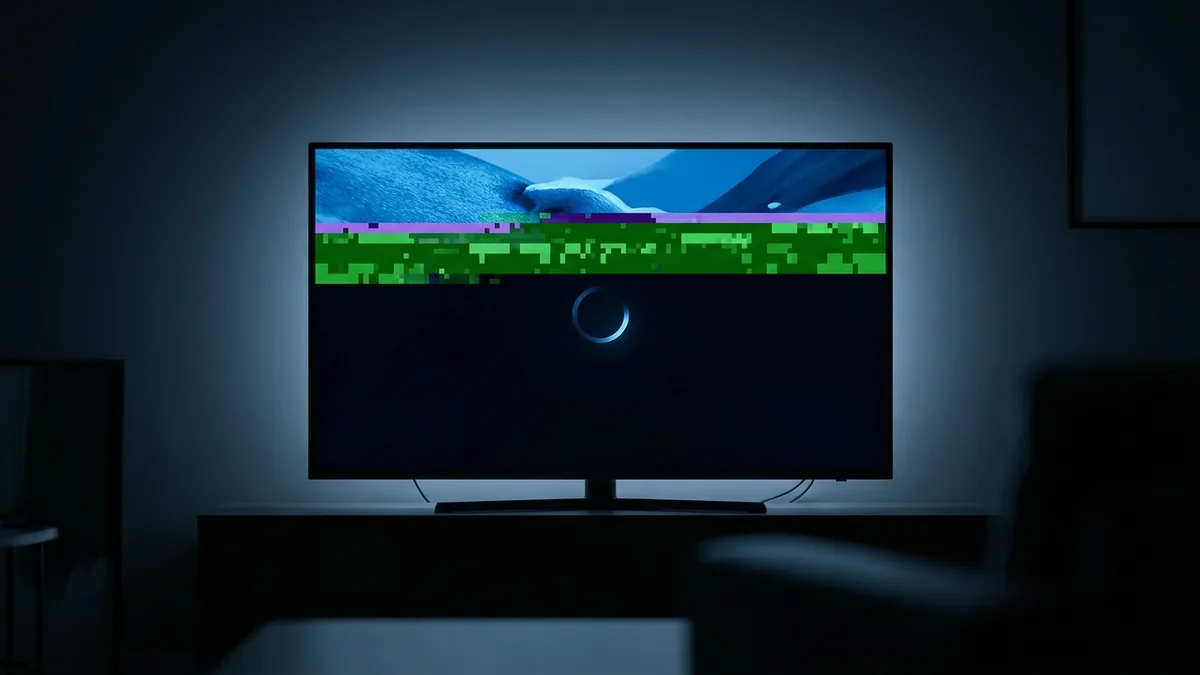
IPTV buffering is almost never the provider. In the overwhelming majority of cases it is your local network, your player settings or your internet provider throttling the connection — and there is a two-minute test that tells you which before you change anything.
Run this test first
Do not adjust settings yet. Establish where the problem is:
- Take your phone. Turn off Wi-Fi so it is on mobile data only.
- Open your IPTV app on the phone and play the exact channel that is failing.
If it plays cleanly on mobile data, your home connection or your internet provider is the problem. The server is fine. Skip to fixes 1 to 5.
If it fails on mobile data too, the issue is the stream or your account. That is a support question, not a settings question — message us and we will move you to a different server endpoint.
This single test saves most people an hour of changing things at random. Do it before anything else.
Fix 1 — Use a cable
The most effective change available to you, and the one people skip because it is unglamorous. Wi-Fi bandwidth is not a fixed number: it varies with distance from the router, with walls and floors, and with how many neighbouring networks compete for the same channel. A 4K stream has almost no tolerance for a sudden dip.
An Ethernet cable costs about $10. An official Fire TV Ethernet adapter is about $15. Between them they resolve more buffering complaints than every other fix on this page combined.
If a cable is genuinely impossible: use the 5 GHz band rather than 2.4 GHz, keep the device within line of sight of the router, and consider a powerline adapter, which is usually more stable than Wi-Fi over the same distance.
Fix 2 — Lower the buffer, not raise it
This is counter-intuitive and it is the setting people get wrong most often. A large buffer does not add stability; it adds latency. The player waits longer before starting, channel changes feel sluggish, and when the buffer does empty you get a longer stall rather than a shorter one.
Two to four seconds is right. In TiViMate it is Settings, then Playback. In IPTV Smarters it is Settings, then Player Settings. If yours is set to ten or fifteen seconds, that is likely part of the problem.
Fix 3 — Turn on hardware decoding
Software decoding forces the CPU to do work the dedicated video chip should be doing. On a Firestick or a mid-range Android box it cannot keep up with 4K, and the result looks exactly like a network problem.
Every player has this switch, usually labelled hardware acceleration or HW decoder. Turn it on. If one specific channel then fails while everything else works, switch that single channel to software decoding — occasionally a stream uses a codec profile the hardware decoder does not handle.
Fix 4 — Clear the app cache
IPTV players accumulate stale playlist and programme-guide data, and it causes intermittent failures that look random. Clearing it takes seconds.
On Fire OS: Settings, Applications, Manage Installed Applications, select your player, Clear Cache. On Android TV: Settings, Apps, your player, Clear Cache. Do this monthly regardless — Fire OS in particular slows down noticeably when storage fills.
Fix 5 — Check whether your ISP is throttling
If streams fail at the same time every evening but work fine at midday, that is congestion or deliberate throttling rather than a fault. Around live sport it is often an outright block: some providers in the UK, Italy and Spain block known streaming endpoints during match windows under court order.
The mobile-data test at the top of this page identifies it. Changing your DNS to 1.1.1.1 or 8.8.8.8 sometimes helps. More often you need a different server address, which support can issue in a couple of minutes. A VPN also works but is worth trying last — see whether you actually need a VPN for IPTV.
Fix 6 — Match the output resolution
Set your device to output 4K explicitly rather than Auto. Auto can settle on 1080p and stay there, or worse, renegotiate mid-stream and cause a visible stutter every time it does. On Fire OS this is Settings, Display and Sounds, Display, Video Resolution.
Fix 7 — Turn off motion smoothing
This is the worst default setting on modern televisions. Samsung calls it Auto Motion Plus, LG calls it TruMotion, Sony calls it Motionflow. It interpolates frames to make motion look smoother and in doing so adds latency and produces visible artefacts on live sport — which is exactly the content you are most likely to be watching.
Turn it off. It is not a network fix, but it removes a stutter people routinely mistake for one.
Fix 8 — Reduce the load on your network
A 4K stream needs about 25 Mbps sustained. If somebody else in the house is on a video call, a console is downloading a game in the background, or a cloud backup is running, that budget disappears. Check what else is using the line before blaming the stream.
Fix 9 — Ask for a different server
If you have worked through everything above and one channel still fails at a predictable time, the endpoint serving you is congested or blocked. This is the one fix only the provider can apply, and it takes minutes.
A provider who cannot do this — because they are a reseller with no access to the infrastructure — is a provider who cannot fix your problem at all. That is the practical reason buying direct matters more than the price difference.
In order of what actually works
- Test on mobile data to locate the problem
- Plug in an Ethernet cable
- Set the buffer to 2–4 seconds and enable hardware decoding
- Clear the app cache
- Set output to 4K, turn off motion smoothing
- Check nothing else is saturating the connection
- Ask support for a different server
Steps two and three fix the large majority of cases. If you have done all seven and it still stutters, message us on WhatsApp with the channel name and the time it fails — that combination usually identifies the cause immediately.